
On August 26, 2026, Zoom will release a new web interface that provides a more unified and intuitive user experience. You can expect to see these changes when you log in at ucr.zoom.us.
Update as of September 18, 2026: The new Zoom web experience will now launch on November 29, 2026. Once launched, it will become a permanent experience for UCR Zoom users.
What Is Changing?
Zoom is enhancing their web interface with a simplified layout, allowing you to access key features faster and manage your Zoom settings more efficiently. The new Zoom web interface features the following:
- Simplified web home experience: The web signed-in homepage offers a cleaner layout, similar to the desktop app, with quick access to the universal header and options to start, join, or schedule a meeting.
- Universal navigation menu: The enhanced header provides universal access to Home, product waffle menu, and profile menu.
- Product waffle menu: Located in the top-right corner of the universal header, the product waffle menu replaces the previous left navigation panel and provides a unified cross-product navigation. It opens each product in a new tab on the web allowing users to configure a product’s settings on its own page. To customize how the products appear, click the product waffle menu, then drag and drop items to reorder them.
- Updated Profile menu: Located in the top-right corner next to the product waffle menu, the new Profile menu has more options. You can click My account to access your personal profile settings.
- Updated My account options: Some features that were originally accessible from the left navigation menu were moved under My account, such as Profile, Reports (previously Analytics & Reports), Personal Contacts, Personal Devices, Settings, Recordings and Transcripts, and Summaries.
What Do You Need to Do?
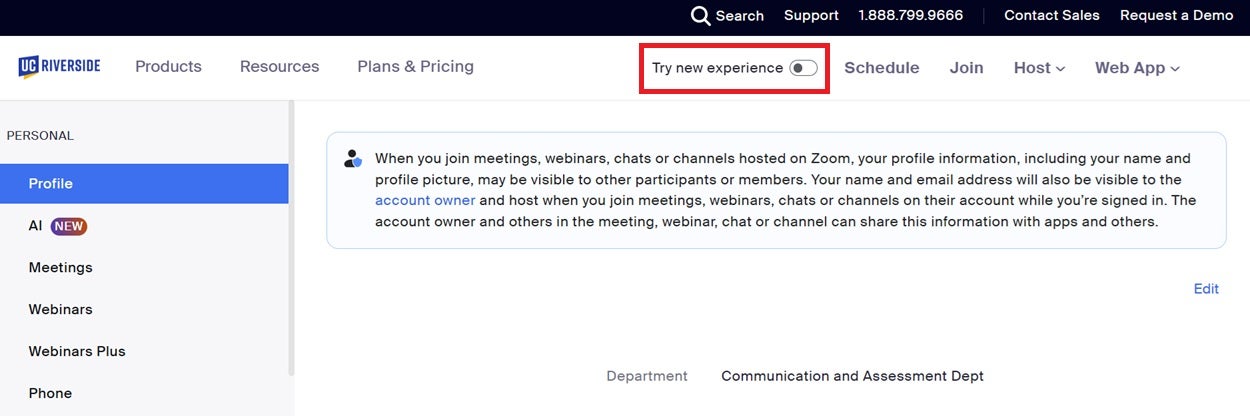
Prepare for the upcoming change by familiarizing yourself with the new user experience. Read the Zoom Support article to learn more. You may also start using the new Zoom web interface by toggling on the Try new experience option that appears beside the Schedule option in the top navigation.
IT Support
If you have questions or concerns about the new Zoom web interface, review the Zoom Support article or get in touch with the ITS Multimedia Team by sending an email to multimedia@ucr.edu.
Note: This article was updated on September 18, 2026.
Let us help you with your search